One Tap in Apple Home to Start an Alexa Playlist (Hubitat, HomeKit and Alexa)
I wanted a button in the Apple Home app that starts a specific Amazon Music playlist on a specific Echo, at a low volume, on repeat. For the last few months I had been asking Alexa to do this by hand. I use it in my own bedroom for my white noise playlist at night, and in my kids’ bedrooms.
My nighttime routine is actually a scene in Apple Home. It makes sure all the doors are closed and locked, turns off all the lights and turns on my bedroom fan. I added this button to the scene, so now it also plays my white noise playlist.
Apple Home can’t start an Alexa routine directly. You can’t do this with only Apple Home and an Echo. Something has to sit in the middle, and for me that’s a Hubitat hub, because it can share devices with both sides: the virtual switch goes to Apple Home through HomeKit Bridge, and a virtual motion sensor goes to Alexa through the Amazon Echo Skill. The twist is that an Alexa routine can’t be triggered by a switch, so a virtual motion sensor does the triggering.
This is useful any time you want one tap in Apple Home to start music on an Echo, with no voice command.
A few terms
- Virtual switch: an on/off device that only exists in Hubitat software. Nothing physical gets switched.
- Virtual motion sensor: a fake motion sensor in Hubitat that you can set to active (motion detected) or inactive (no motion) yourself.
- Rule Machine: Hubitat’s built-in app for “when this happens, do that” rules.
- Trigger: the event that starts a rule or routine.
- Routine: Alexa’s version of an automation. A trigger, then a list of actions.
- Discover devices: Alexa scanning for devices that were newly shared with it.
- Provider: the music service Alexa plays from. Here that’s Amazon Music.
What you need
- A Hubitat hub. This doesn’t work without one.
- HomeKit Bridge set up on the hub. Mine was already set up from earlier projects. If yours isn’t, add the HomeKit Bridge app per Hubitat’s docs, enable it, then add the hub in Apple Home with its QR code.
- The Hubitat skill enabled in the Alexa app with the hub linked, through the Amazon Echo Skill app on the hub. This is a one-time setup. After that, devices you tick in the Amazon Echo Skill app are discovered by Alexa automatically.
- Rule Machine (the rule type is Rule 5.1; my rule page shows Rule Machine version 5.1.8).
- The Alexa phone app.
- An Echo that plays Amazon Music. The ones I use are Echo Dots (a few generations) and an Echo Show 8. It’s meant to work across Echo models, but those are the only ones I’ve used.
The Hubitat side
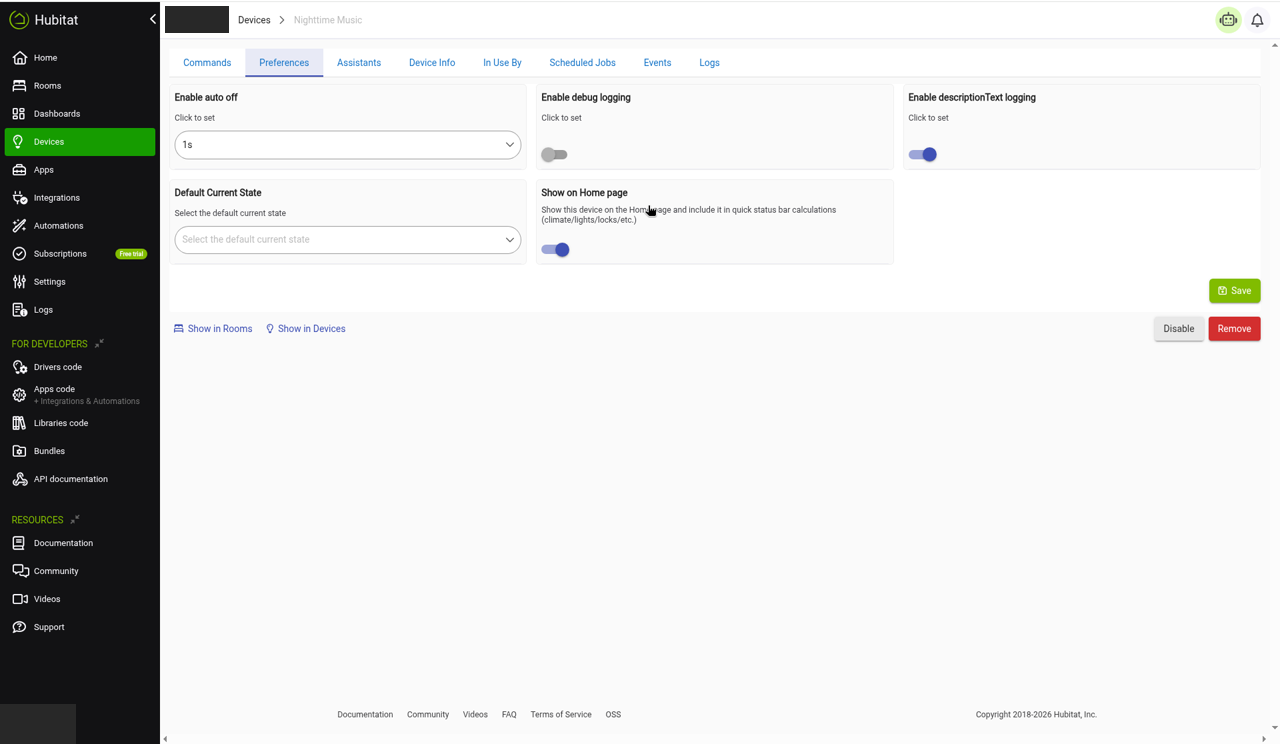
- Create the virtual switch. Devices > Add Device > Virtual, name it “Nighttime Music”, set the type to Virtual Switch, and save. On the device page, set the “Enable auto off” preference to 1s, so it acts like a button. You tap it, it turns on, and it flips back off by itself.
- Share the switch with HomeKit Bridge (tick only the new device). Don’t press Unpair controllers, which unpairs the hub from Apple Home and drops every device it shares. The switch doesn’t need to be shared with Amazon Echo Skill. I did that in case I ever wanted to use it that way, and it turned out to be unnecessary.
- Create the virtual motion sensor the same way, with the type set to Virtual Motion Sensor. Mine is “Nighttime Trigger”. Share it with Amazon Echo Skill only.
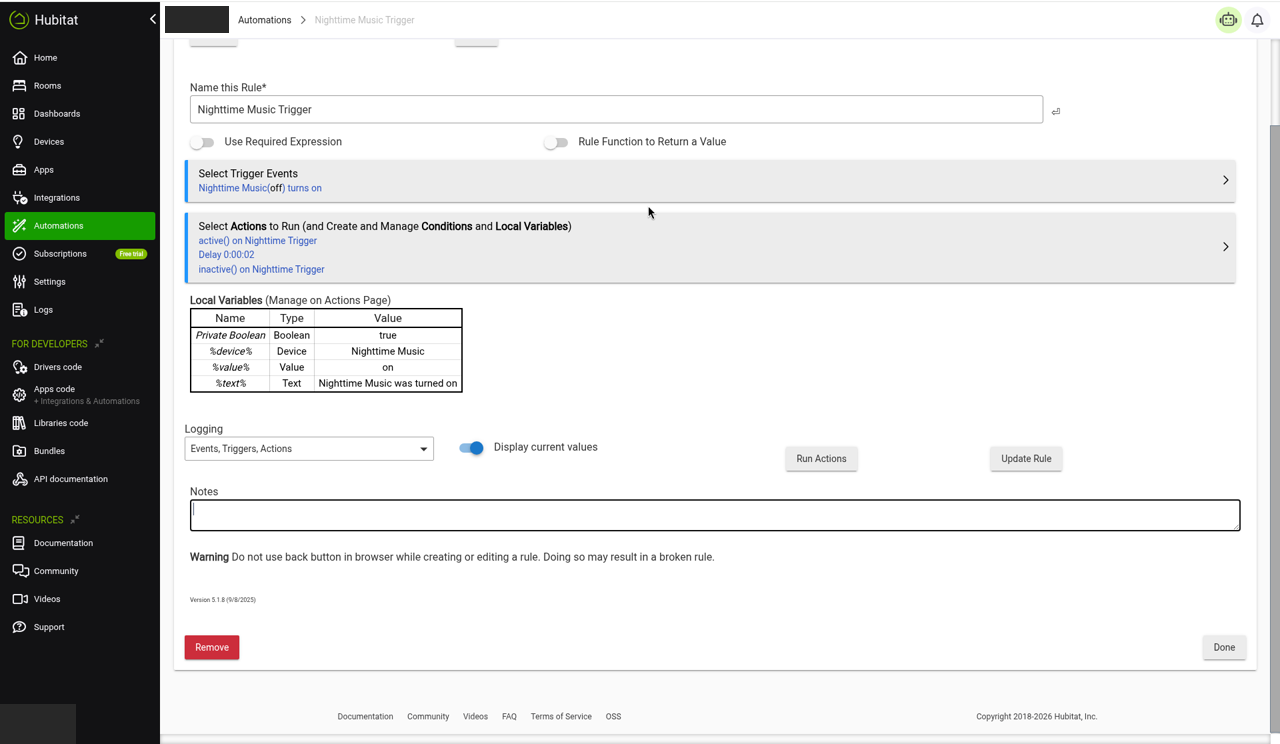
- Create the rule. Apps > Add Built-In App > Rule Machine > Create New Rule, pick Rule-5.1, and name it “Nighttime Music Trigger”. Add a Trigger Event (not a Required Expression): Nighttime Music turns on. The actions, in order: Run Custom Action on Nighttime Trigger, capability Motion, command active(). Then a 2 second delay. Then Run Custom Action on Nighttime Trigger, command inactive().
Pressing the switch in Apple Home now makes Alexa see a brief motion event. The 2 second pause is a rough guess, meant to give Alexa a moment to see the motion. It worked at 2 seconds. I didn’t test other values. You can adjust it if your routine misses presses.
Why a rule: Alexa can’t use a switch as a routine trigger, so something has to turn the switch press into motion.
One tip from a related project: if a rule triggers on the switch “changed”, an auto-off switch fires it twice, once on and once off. Use “turns on” so each press runs once.
The Apple Home step
The switch shows up in Apple Home as a new tile named “Nighttime Music”. Mine landed in my default room, and I had to move it into the correct room. Long press it and put it in a room or add it to favorites so it’s one tap away.
The Alexa routine
Amazon’s help pages only describe building routines in the Alexa phone app (see Create an Alexa Routine in the Alexa App in Amazon help), and alexa.amazon.com now just shows a QR code to open the app.
First say “Alexa, discover devices”, or run discovery from the Devices tab, so the new sensor shows up. If it doesn’t, check that the sensor is ticked in the Amazon Echo Skill app on the hub, wait a minute, and run discovery again from the Devices tab.
Then go to More > Routines > + > Add an event (some app versions say When this happens).
- Event: Smart Home > Nighttime Trigger > Motion detected.
- Set the volume to 4 out of 10 on the Echo. I put this before the music.
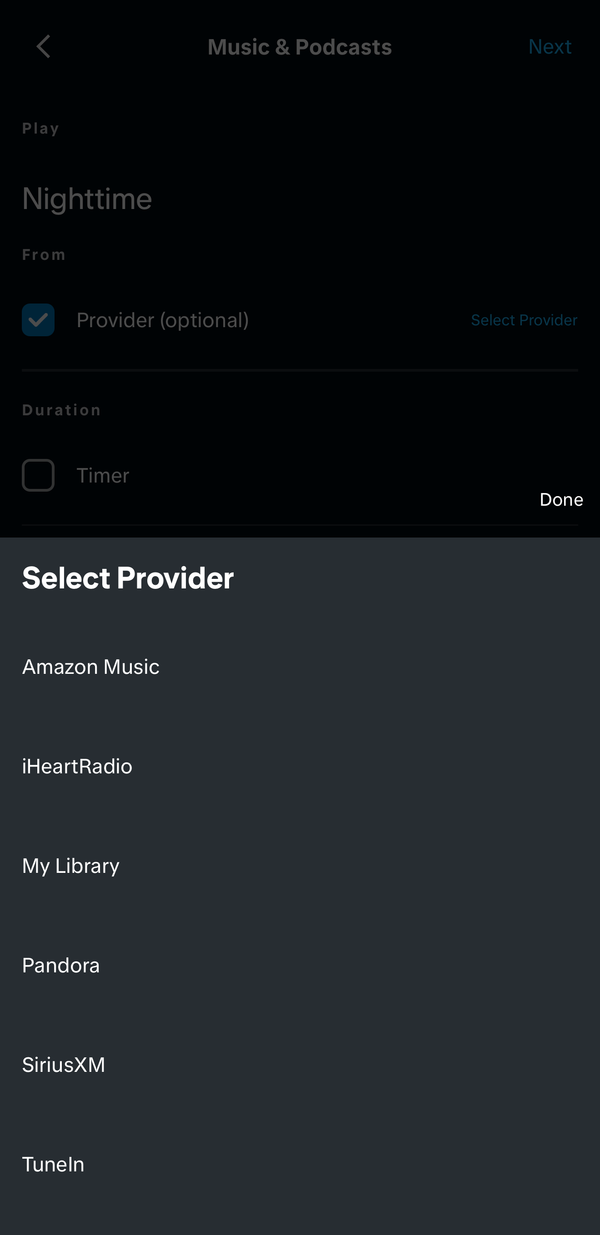
- Music and Podcasts: play the playlist by name, with the provider set to Amazon Music and the device set to the Echo. Turn on repeat. My white noise track is only about 10 minutes long, so it has to repeat over and over to stay on all night.
Amazon Music isn’t the only option. Amazon says Alexa can play from other services you link in the Alexa app (More > Settings > Music & Podcasts > Link New Service), including Apple Music, Spotify, Pandora, iHeartRadio and SiriusXM, per Amazon’s Alexa entertainment page and Apple’s own support page. The list varies by country and can change. I’ve only used Amazon Music, so I haven’t tried any of the others with this setup. 4. Save.
How to test
Turn the switch on from Apple Home. The playlist should start on the Echo at the volume you set. That’s what happened for me when I tested it on 2026-10-25.
If it doesn’t work
Some things to check:
- Did the switch turn on? Open the Nighttime Music device page in Hubitat, or check Hubitat’s Logs, when you tap the tile.
- Did the rule fire, and did the sensor go active? The Rule Machine rule page and the Logs show this, and the Nighttime Trigger device page should briefly show active.
- Is the sensor ticked in the Amazon Echo Skill app, and does it show up in the Alexa app’s Devices tab?
- Is the routine’s device set to the right Echo?
Gotchas
- My first try used the virtual switch as the routine trigger. It didn’t show up in the Smart Home list. Alexa only offers certain device types as routine triggers, such as motion sensors, contact sensors, locks and doorbells. Switches aren’t one, according to an Alexa support reply and Hubitat’s community forum. That’s why the motion sensor and the rule exist.
- With the provider left blank, Alexa searched by name and played the wrong playlist. Picking Amazon Music as the provider fixed it. A tip I haven’t tested: typing “my [playlist name] playlist” may also help.
- The 1-second auto-off matters. It keeps the Apple Home tile acting like a button, and every press triggers the rule cleanly.
Testing
Turning the switch on in Apple Home started the playlist on the Echo. It worked on the first real test. The chain is Apple Home > HomeKit Bridge > virtual switch > Hubitat rule > virtual motion sensor > Alexa routine > Amazon Music on the Echo.
I tested it on 2026-10-25.
More buttons
I repeated the same recipe for my kids’ bedrooms, each with its own virtual switch, motion sensor, rule, and Alexa routine on that room’s Echo. Each button is 2 virtual devices, 1 rule and 1 Alexa routine. I’d say about 20 minutes per button, depending on how well you know your system.
It works fantastic. It’s much easier than telling Alexa every step.
What I used
- Hubitat Elevation hub (Hubitat’s official site)
- Echo Dot, several generations
- Echo Show 8
These are the Echos I use. I haven’t tried other models. The Echo links are Amazon affiliate links. As an Amazon Associate I earn from qualifying purchases.