Tour of My Home Assistant Wall Dashboard
I wanted a single view of the house instead of opening multiple apps. Alexa and Apple Home sometimes didn’t turn things off, or misheard me, so I wanted a way to verify. That’s what the wall dashboard is for. It runs Home Assistant on an iPad. (Here’s how Home Assistant fits in with my Hubitat.)
I use the floor plan view the most. I check the cameras when I’m expecting visitors.
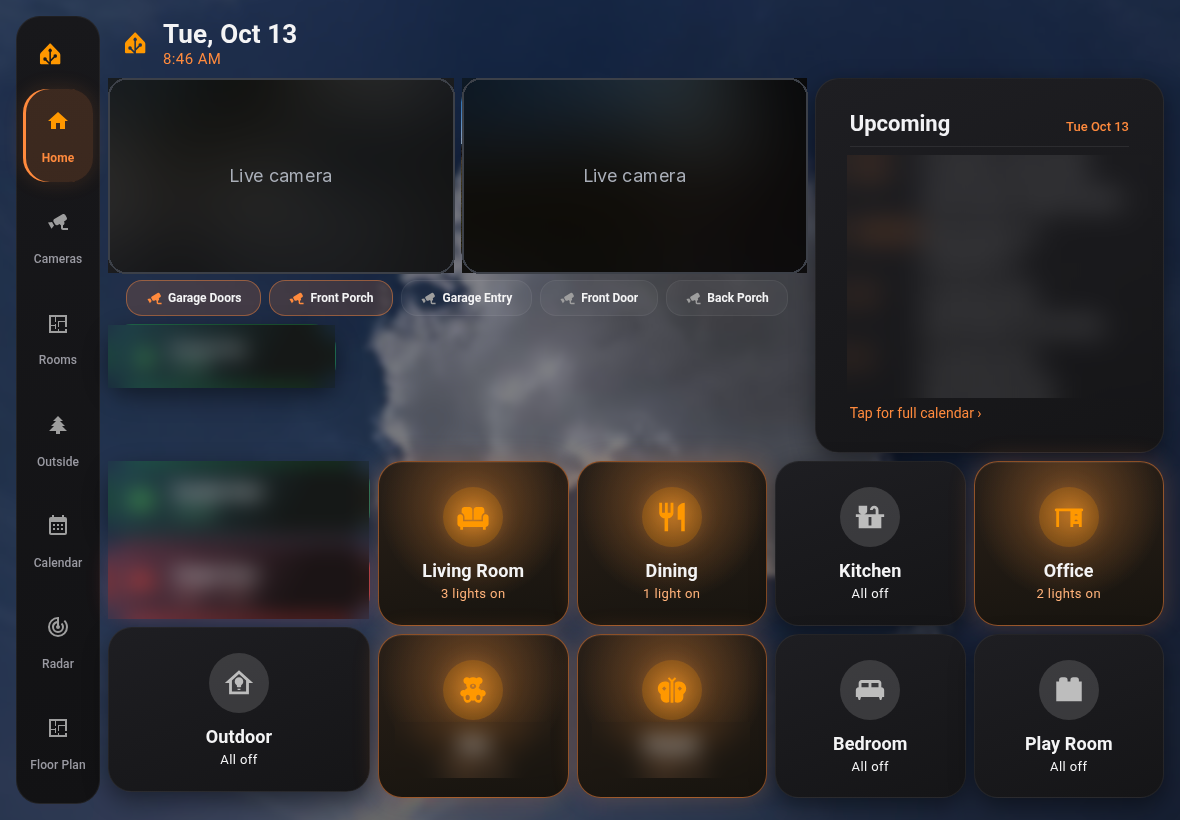
Pages
The header and sidebar are hidden with kiosk-mode, and a column on the left switches pages.
- Home: two camera views with buttons to swap which cameras show, upcoming calendar events, the garage doors, and a tile for each room. Each room tile controls a light group, so one tap does the whole room.
- Cameras, Rooms, and Outside pages.
- Calendar: Google Calendar plus a public iCal feed through the Remote Calendar integration, in a month view.
- Radar: live weather radar.
- Floor Plan: rooms light up when their lights are on, the garage doors show open or closed (ratgdo), and tapping a camera icon opens a live view.
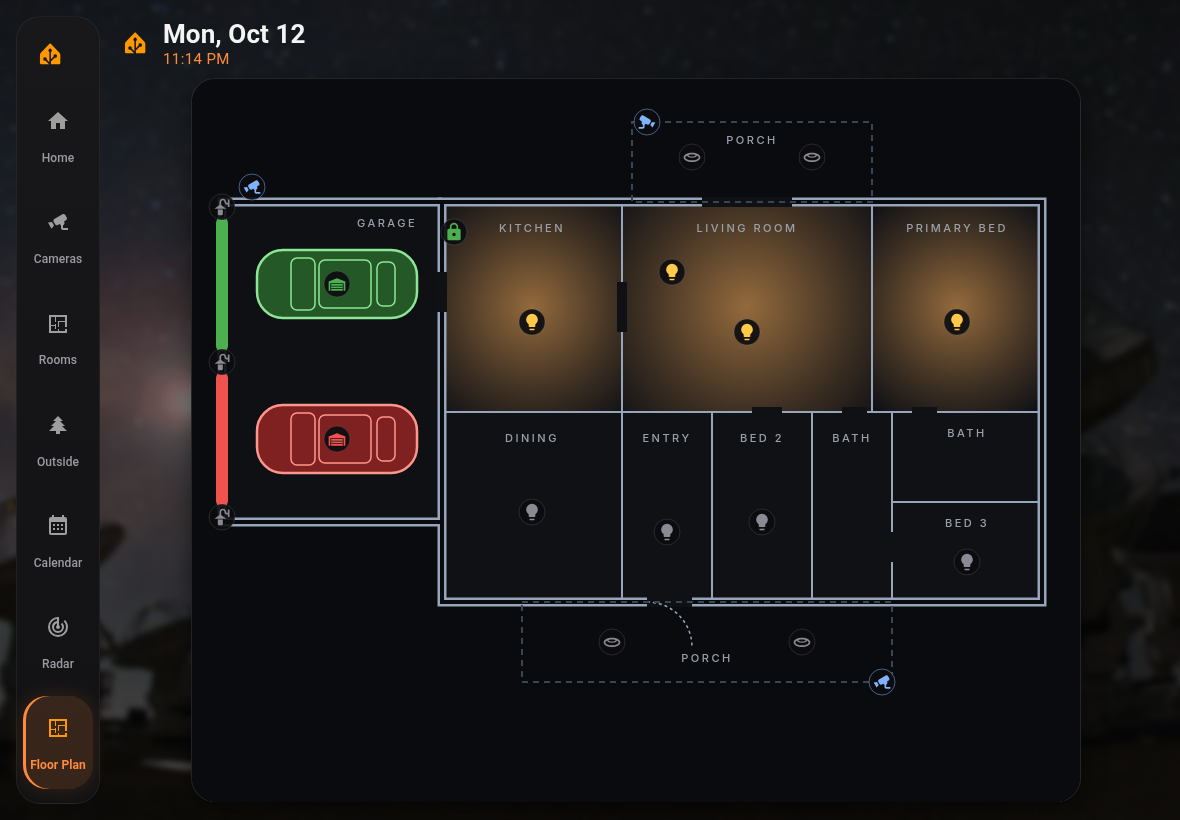
If you want to build a floor plan, the built-in Picture elements card is the usual starting point. It places icons and state-based images on top of a background picture.
Cards
These are community cards installed through HACS:
- Mushroom for clean, compact cards.
- Advanced Camera Card for camera views.
- card-mod for CSS styling.
- kiosk-mode to hide the header and sidebar.
Community cards can break after an update, so read the release notes and update one thing at a time. The cameras come in through the built-in Reolink integration.
It’s all trial and error. Sometimes things don’t work or look the way you expect, so you change it and try again. I plan to add a weather card and my kids’ chore charts.
A wall tablet is visible to anyone who walks in, so think about which cameras and calendars you put on it.